Proxy
Reqable uses the MITM proxy server to intercept traffic. Correct proxy setup is essential. By default, Reqable configures the system network proxy automatically, so you do not need to edit system settings manually.
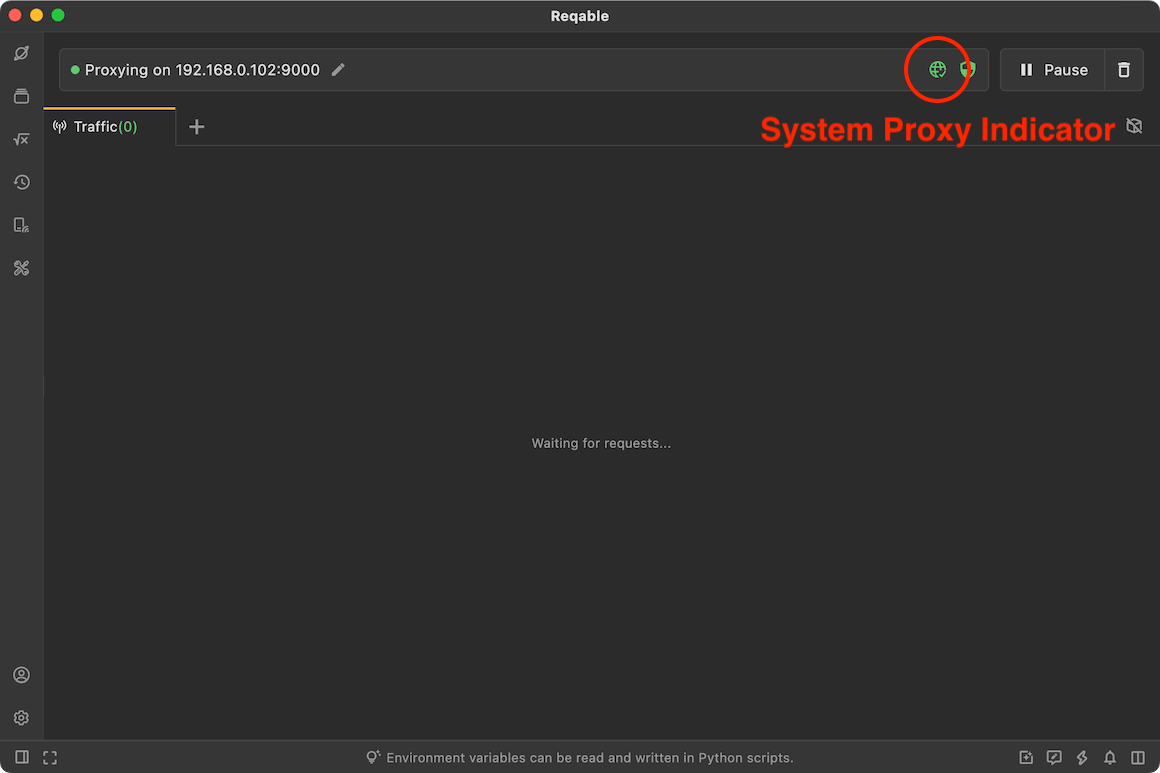
The status of the system proxy will be displayed on the toolbar. If the system proxy is properly configured, the icon will show a green active state; otherwise, it will show a yellow warning state. Clicking the icon in the green state will disable the system network proxy; clicking the icon in the yellow state will enable the system network proxy.
When you need to perform traffic analysis on native applications (such as browsers, etc.), please keep the system network proxy in the green active state! Some proxy applications such as Clash may cause conflicts. It is recommended to close other proxy applications when using Reqable.
Normally, client applications (such as browsers) connect to the Reqable proxy server using the system proxy settings. Some apps ignore the system proxy; in that case, configure a proxy in the app settings. If an app neither uses the system proxy nor allows manual proxy configuration, Reqable cannot analyze its traffic. With authorization from the app owner, you can use tools such as Proxifier to force traffic through the Reqable proxy server.
For localhost traffic, it may not go through the Reqable proxy server, even if we have properly configured the system network proxy. About the workaround, please read localhost.
In addition, on Windows, some clients do not support default proxy rule. Please read the following Proxy Rules for more details.
Proxy Protocol
Reqable supports five proxy protocols including HTTP, HTTPS, Socks4, Socks4a, and Socks5. Reqable proxy server listens to the same port (port 9000 by default), and automatically determines the protocol based on the client's message content. Reqable cannot specify which proxy protocol the target application adopts, it can only be configured in the proxy settings of the system, which is determined by the client program itself. Regarding proxy settings, different computer systems provide different methods. Please read the following according to the operating system you are using.
Windows
Windows can only configure Web proxy or Socks proxy, choose one of the two. By default, Reqable will automatically configure the web proxy. If there is a need to use the Socks proxy, you can switch it in the right-click menu of the proxy icon.
MacOS
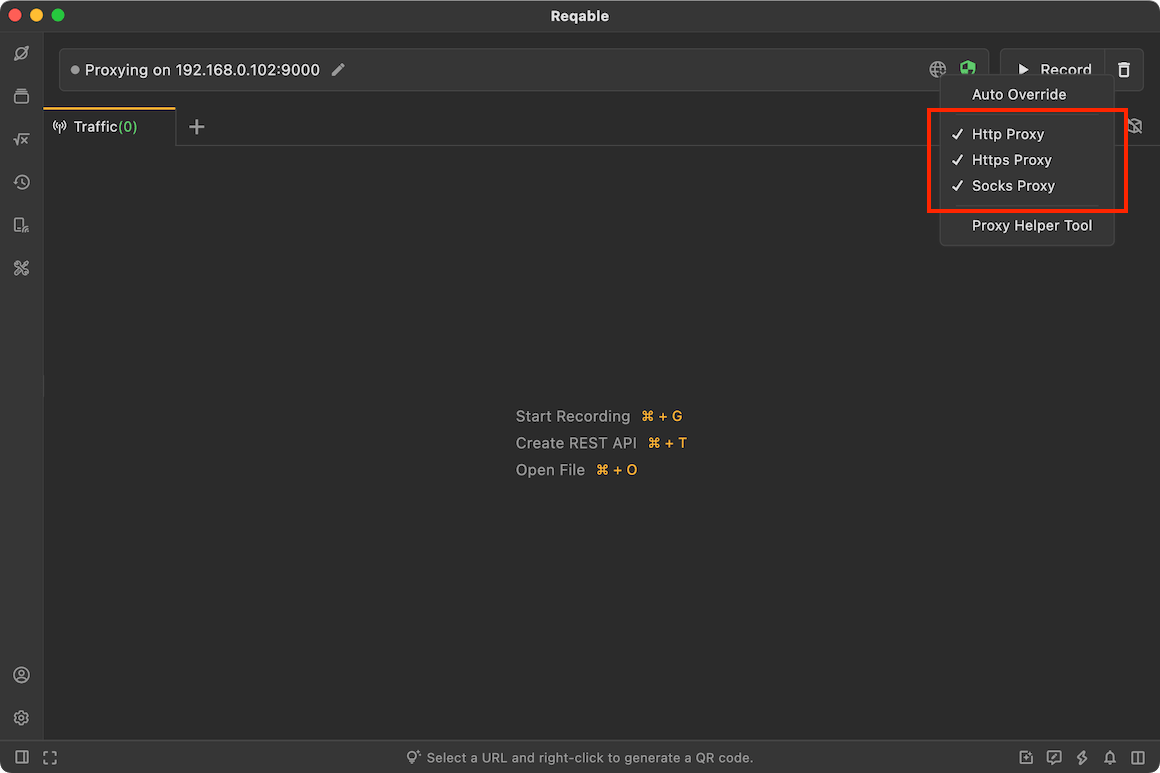
The Mac OSX system supports the configuration of HTTP, HTTPS and SOCKS protocols at the same time. Users can configure all three or only one in Reqable. In general, it is recommended to check all three protocols.
Linux
Linux works the same way as macOS: it supports configuring HTTP, HTTPS, and SOCKS proxies simultaneously. Users can configure all three or only one in Reqable. In general, it is recommended to check all three protocols.
Secondary Proxy
For accessing some restricted websites, such as accessing Google in mainland China, you need to use some proxy software. However, only one proxy can be configured in the system settings. When Reqable is used as the system proxy, these websites will not be accessible. In this case, Reqable's secondary proxy needs to be used. How it works: when Reqable receives a client proxy request, it forwards the request to the secondary proxy server, which handles the upstream connection. You can create a secondary proxy configuration via menu Proxy -> Secondary Proxy -> New Secondary Proxy.
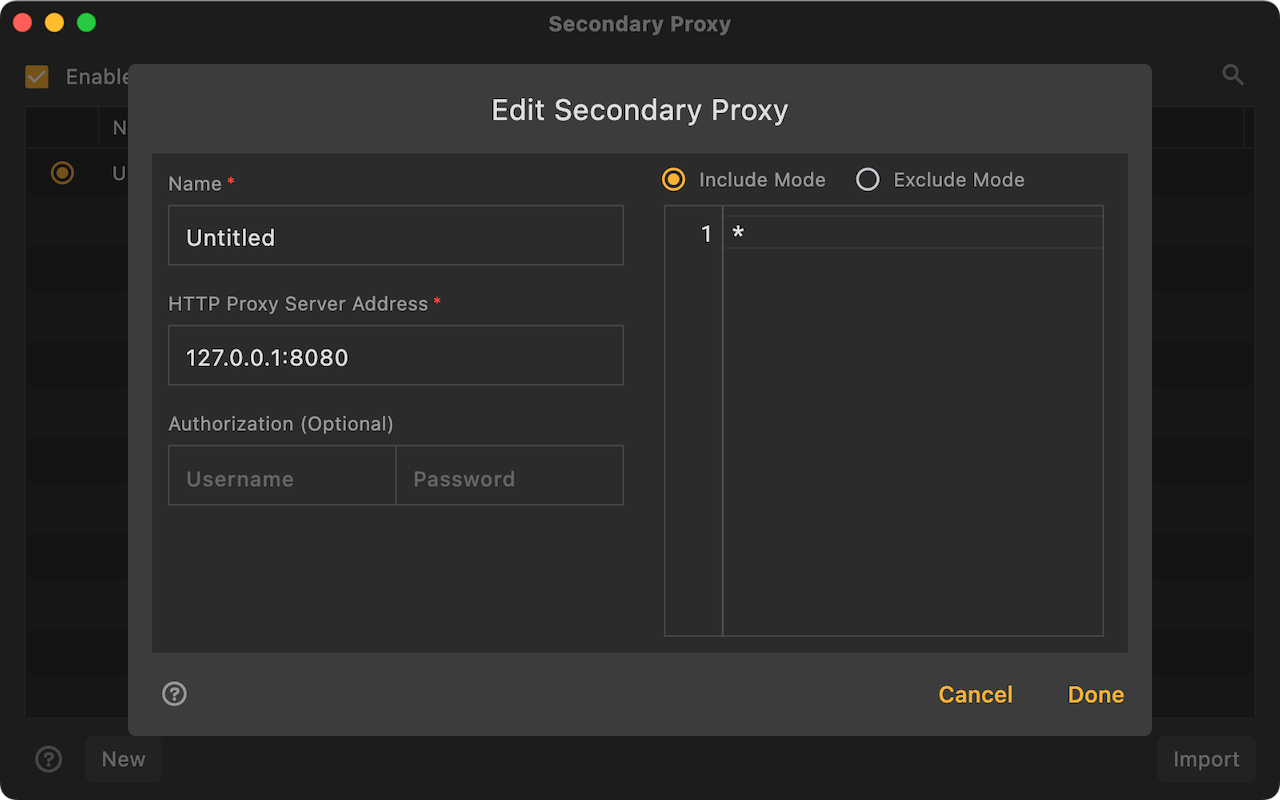
Enter the name, IP address, and port number of the secondary proxy server and save. The secondary proxy provides two modes: Include Mode and Exclude Mode.
Include Mode: only allow traffic with specified domain name rules to go to the secondary proxy. Exclude Mode: traffic with specified domain name rules bypasses the secondary proxy.
Users can configure multiple domain name rules, support wildcards * and ?, one domain name per line. If only one * symbol is configured, it means matching all traffic.
The secondary proxy currently only supports the HTTP proxy protocol. After enabling the secondary proxy, the top indicator icon will change from a network to an airplane.
If you have multiple proxy servers, you can create multiple configurations and manage them in the secondary proxy list.

If the secondary proxy is configured and enabled, but the secondary proxy server is not started, requests to the secondary proxy will fail.
There are two solutions for mobile apps that need to access restricted traffic.
- Collaborative mode: The mobile Reqable uses collaborative mode to connect to PC, and the secondary proxy can be configured as above on PC.
- Standalone mode: Whether it is Android or iOS, the system can only enable one VPN service at a time. If Reqable enables VPN mode, the secondary proxy app must run in non-VPN mode. Note that for Android system, you also need to exclude the secondary proxy app from the application list, otherwise there will be a traffic loop.
Proxy Rule
On the Windows system, the web proxy supports the following formats.
① {ip}:{http_port}
② http=http://{ip}:{http_port};https=http://{ip}:{http_port}
③ http={ip}:{http_port};https={ip}:{http_port}
The first of these is a common format and is the default format chosen by Reqable. But some clients can't recognize this format (see this issue), so Reqable provides an option to switch the format. When the web proxy type is selected, the proxy rules can be switched.